

Workflows
Automate review requests, AI reply drafts and team alerts.
In the dashboard
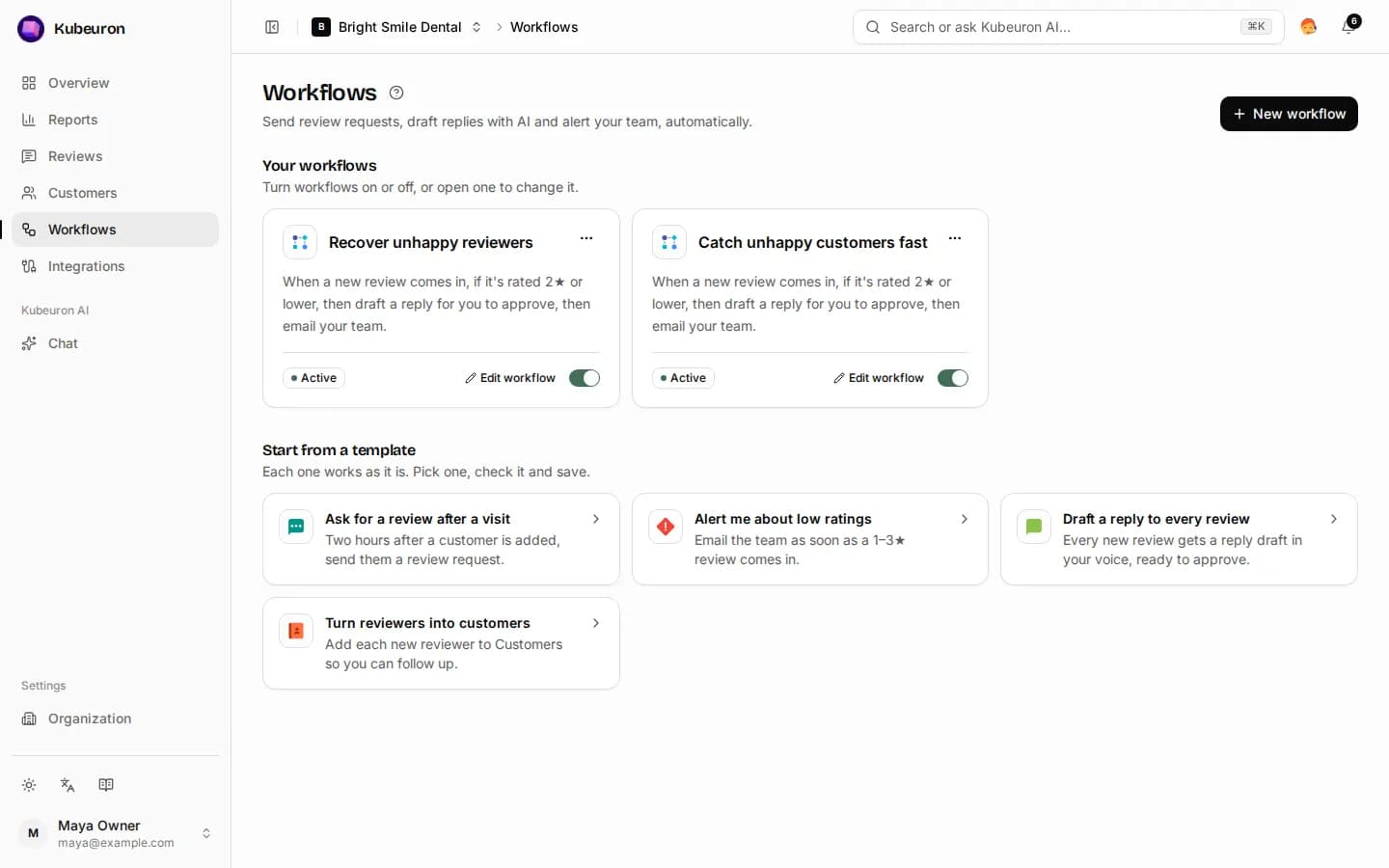
A workflow runs on its own when something happens, such as a new customer or a new review. Each workflow card describes what it does in one sentence.
Templates
| Template | What it does |
|---|---|
| Ask for a review after a visit | Sends a review request two hours after a customer is added |
| Alert me about low ratings | Emails your team when a 1–3★ review arrives |
| Draft a reply to every review | AI saves a reply draft on every new review |
| Catch unhappy customers fast | For 1–2★ reviews, AI drafts a careful reply and the team is alerted |
| Turn reviewers into customers | Adds each new reviewer to Customers |
Select a template, check it and save. To build your own, select New workflow.
How a workflow is built
Every workflow answers three questions:
- When — a customer is added (optionally only customers with a tag), or a new review arrives.
- Only if — for reviews, you can limit it to low ratings, such as 3★ or lower.
- Do this — for a new customer, send a review request by SMS, email or WhatsApp after a delay you choose. For a new review, turn on any of:
- Draft a reply with AI — saved as a draft. Nothing is published until you approve it.
- Email the team — to the addresses you enter, or your whole team.
- Capture customer from review — adds the reviewer to Customers.
A summary under the form says in one sentence what the workflow will do before you save it.
Manage workflows
Use the switch on a card to pause or resume a workflow, or open it to edit. Customers who opted out or lack the needed contact details are skipped.